
备注
Go to the end 下载完整的示例代码.
Matplotlib 中的文本#
Matplotlib 具有广泛的文本支持,包括对数学表达式的支持,对光栅和矢量输出的 TrueType 支持,具有任意旋转的换行分隔文本以及 Unicode 支持.
因为它将字体直接嵌入到输出文档中,例如,对于 postscript 或 PDF,您在屏幕上看到的内容就是您在硬拷贝中获得的内容. FreeType 支持产生非常漂亮的,抗锯齿的字体,即使在小的光栅尺寸下也看起来不错.Matplotlib 包括它自己的 matplotlib.font_manager (感谢 Paul Barrett),它实现了一个跨平台的, W3C 兼容的字体查找算法.
用户可以很好地控制文本属性(字体大小,字体粗细,文本位置和颜色等),并在 rc file 中设置了合理的默认值. 重要的是,对于那些对数学或科学图形感兴趣的人,Matplotlib 实现了大量的 TeX 数学符号和命令,支持在您的图形中的任何位置的 mathematical expressions .
基本文本命令#
以下命令用于在隐式和显式接口中创建文本(有关权衡的解释,请参见 Matplotlib 应用程序接口 (APIs) ):
隐式 API |
显式 API |
描述 |
|---|---|---|
|
|
在 |
|
|
在 |
|
|
为 |
|
|
为 |
|
|
为 |
|
|
在 |
|
|
为 |
所有这些函数都创建并返回一个 Text 实例,可以使用各种字体和其他属性对其进行配置.下面的示例展示了所有这些命令的实际应用,并在后面的章节中提供了更多详细信息.
import matplotlib.pyplot as plt

import matplotlib

fig = plt.figure()
ax = fig.add_subplot()
fig.subplots_adjust(top=0.85)

# Set titles for the figure and the subplot respectively
fig.suptitle('bold figure suptitle', fontsize=14, fontweight='bold')
ax.set_title('axes title')

ax.set_xlabel('xlabel')
ax.set_ylabel('ylabel')

# Set both x- and y-axis limits to [0, 10] instead of default [0, 1]
ax.axis([0, 10, 0, 10])

ax.text(3, 8, 'boxed italics text in data coords', style='italic',
        bbox={'facecolor': 'red', 'alpha': 0.5, 'pad': 10})

ax.text(2, 6, r'an equation: $E=mc^2$', fontsize=15)

ax.text(3, 2, 'Unicode: Institut für Festkörperphysik')

ax.text(0.95, 0.01, 'colored text in axes coords',
        verticalalignment='bottom', horizontalalignment='right',
        transform=ax.transAxes,
        color='green', fontsize=15)

ax.plot([2], [1], 'o')
ax.annotate('annotate', xy=(2, 1), xytext=(3, 4),
            arrowprops=dict(facecolor='black', shrink=0.05))

plt.show()
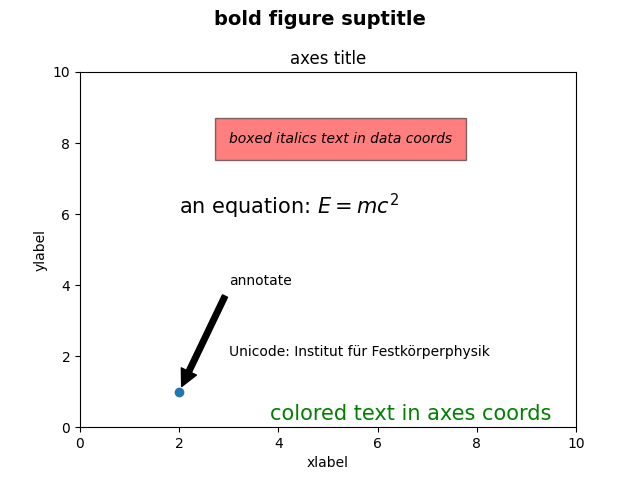
x 轴和 y 轴的标签#
通过 set_xlabel 和 set_ylabel 方法直接指定 x 轴和 y 轴的标签.
import matplotlib.pyplot as plt
import numpy as np

x1 = np.linspace(0.0, 5.0, 100)
y1 = np.cos(2 * np.pi * x1) * np.exp(-x1)

fig, ax = plt.subplots(figsize=(5, 3))
fig.subplots_adjust(bottom=0.15, left=0.2)
ax.plot(x1, y1)
ax.set_xlabel('Time (s)')
ax.set_ylabel('Damped oscillation (V)')

plt.show()
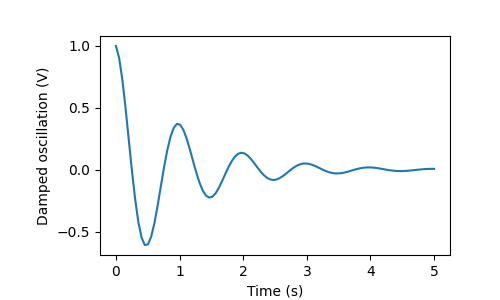
x 轴和 y 轴标签会自动放置,以便它们清除 x 轴和 y 轴的刻度标签.将下图与上图进行比较,并注意 y 轴标签位于上图的左侧.
fig, ax = plt.subplots(figsize=(5, 3))
fig.subplots_adjust(bottom=0.15, left=0.2)
ax.plot(x1, y1*10000)
ax.set_xlabel('Time (s)')
ax.set_ylabel('Damped oscillation (V)')

plt.show()
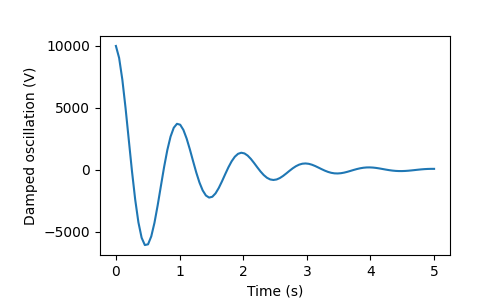
如果想要移动标签,可以指定 labelpad 关键字参数,其中该值是点(1/72 英寸,与用于指定字体大小的单位相同).
fig, ax = plt.subplots(figsize=(5, 3))
fig.subplots_adjust(bottom=0.15, left=0.2)
ax.plot(x1, y1*10000)
ax.set_xlabel('Time (s)')
ax.set_ylabel('Damped oscillation (V)', labelpad=18)

plt.show()
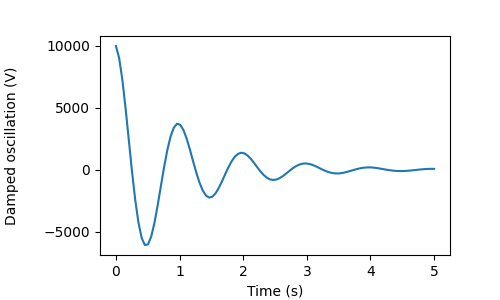
或者,标签接受所有 Text 关键字参数,包括位置,通过这些参数可以手动指定标签位置.这里我们将 xlabel 放在轴的最左边.请注意,此位置的 y 坐标无效 - 要调整 y 位置,我们需要使用 labelpad 关键字参数.
fig, ax = plt.subplots(figsize=(5, 3))
fig.subplots_adjust(bottom=0.15, left=0.2)
ax.plot(x1, y1)
ax.set_xlabel('Time (s)', position=(0., 1e6), horizontalalignment='left')
ax.set_ylabel('Damped oscillation (V)')

plt.show()
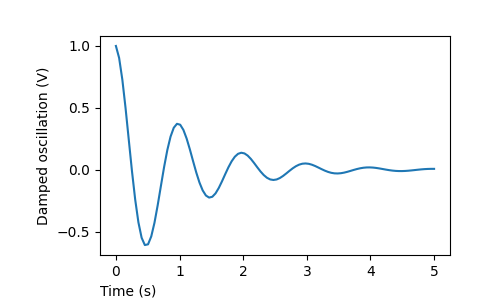
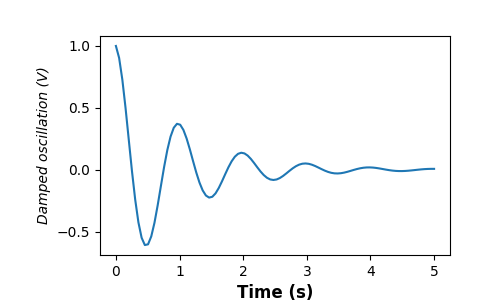
本教程中的所有标签都可以通过操作 matplotlib.font_manager.FontProperties 方法或通过 set_xlabel 的命名关键字参数来更改.
from matplotlib.font_manager import FontProperties

font = FontProperties(family='Times New Roman', style='italic')

fig, ax = plt.subplots(figsize=(5, 3))
fig.subplots_adjust(bottom=0.15, left=0.2)
ax.plot(x1, y1)
ax.set_xlabel('Time (s)', fontsize='large', fontweight='bold')
ax.set_ylabel('Damped oscillation (V)', fontproperties=font)

plt.show()
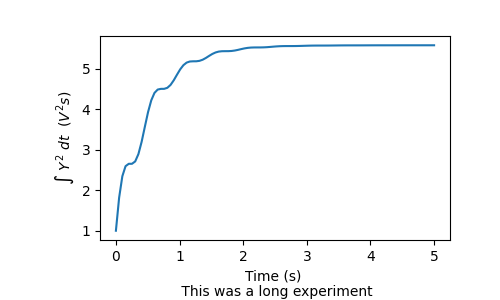
最后,我们可以在所有文本对象中使用本机 TeX 渲染并具有多行:
fig, ax = plt.subplots(figsize=(5, 3))
fig.subplots_adjust(bottom=0.2, left=0.2)
ax.plot(x1, np.cumsum(y1**2))
ax.set_xlabel('Time (s) \n This was a long experiment')
ax.set_ylabel(r'$\int\ Y^2\ dt\ \ (V^2 s)$')
plt.show()
标题#
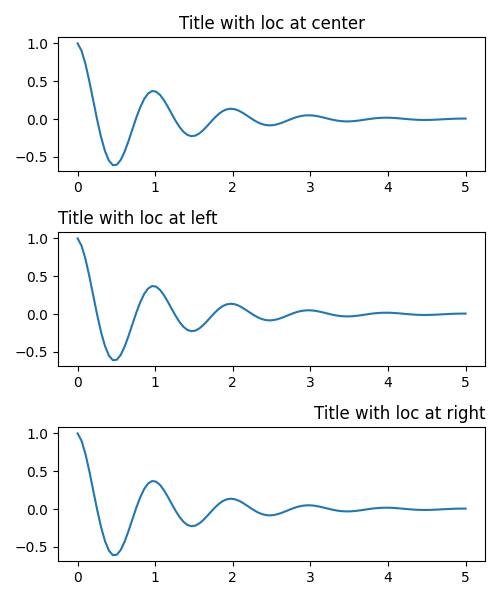
子图标题的设置方式与标签大致相同,但是 loc 关键字参数可以更改位置和对齐方式(默认值为"center").
fig, axs = plt.subplots(3, 1, figsize=(5, 6), tight_layout=True)
locs = ['center', 'left', 'right']
for ax, loc in zip(axs, locs):
    ax.plot(x1, y1)
    ax.set_title('Title with loc at ' + loc, loc=loc)
plt.show()
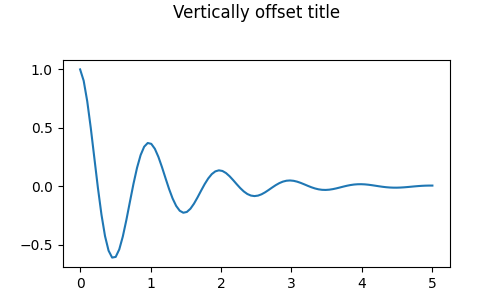
标题的垂直间距通过 rcParams["axes.titlepad"] (default: 6.0) 控制. 设置不同的值会移动标题.
fig, ax = plt.subplots(figsize=(5, 3))
fig.subplots_adjust(top=0.8)
ax.plot(x1, y1)
ax.set_title('Vertically offset title', pad=30)
plt.show()
刻度和刻度标签#
放置刻度和刻度标签是制作图形的一个非常棘手的方面. Matplotlib 尽最大努力自动完成这项任务,但它也提供了一个非常灵活的框架,用于确定刻度位置的选择以及如何标记它们.
术语#
坐标轴具有用于 ax.xaxis 和 ax.yaxis 的 matplotlib.axis.Axis 对象,其中包含有关轴中标签的布局方式的信息.
轴 API 在 axis 的文档中有详细说明.
一个 Axis 对象有主刻度和副刻度.Axis 有 Axis.set_major_locator 和 Axis.set_minor_locator 方法,这些方法使用正在绘制的数据来确定主刻度和副刻度的位置. 还有 Axis.set_major_formatter 和 Axis.set_minor_formatter 方法来格式化刻度标签.
简单刻度#
通常,简单地定义刻度值(有时是刻度标签)会很方便,从而覆盖默认的定位器和格式化器.但是,不建议这样做,因为它会破坏绘图的交互式导航.它还会重置轴限制:请注意,第二个绘图具有我们要求的刻度,包括那些远在自动视图限制之外的刻度.
fig, axs = plt.subplots(2, 1, figsize=(5, 3), tight_layout=True)
axs[0].plot(x1, y1)
axs[1].plot(x1, y1)
axs[1].xaxis.set_ticks(np.arange(0., 8.1, 2.))
plt.show()
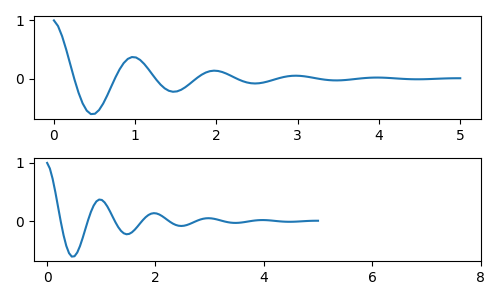
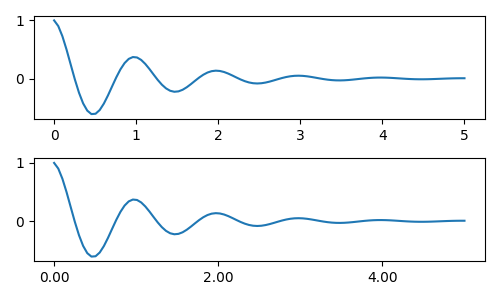
我们当然可以在事后修复这个问题,但它确实突出了硬编码刻度的一个弱点.此示例还更改了刻度的格式:
fig, axs = plt.subplots(2, 1, figsize=(5, 3), tight_layout=True)
axs[0].plot(x1, y1)
axs[1].plot(x1, y1)
ticks = np.arange(0., 8.1, 2.)
# list comprehension to get all tick labels...
tickla = [f'{tick:1.2f}' for tick in ticks]
axs[1].xaxis.set_ticks(ticks)
axs[1].xaxis.set_ticklabels(tickla)
axs[1].set_xlim(axs[0].get_xlim())
plt.show()
刻度定位器和格式化器#
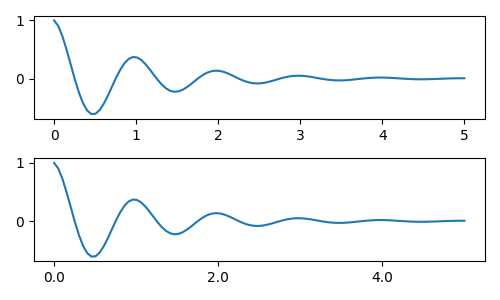
我们可以使用 matplotlib.ticker.StrMethodFormatter (new-style str.format() 格式字符串)或 matplotlib.ticker.FormatStrFormatter (old-style '%' 格式字符串) 并将其传递给 ax.xaxis ,而不是列出所有刻度标签. 还可以通过传递一个 str 来创建一个 matplotlib.ticker.StrMethodFormatter ,而无需显式创建格式化器.
fig, axs = plt.subplots(2, 1, figsize=(5, 3), tight_layout=True)
axs[0].plot(x1, y1)
axs[1].plot(x1, y1)
ticks = np.arange(0., 8.1, 2.)
axs[1].xaxis.set_ticks(ticks)
axs[1].xaxis.set_major_formatter('{x:1.1f}')
axs[1].set_xlim(axs[0].get_xlim())
plt.show()
当然,我们可以使用非默认的定位器来设置刻度位置. 请注意,我们仍然传入刻度值,但不需要上面使用的 x 限制修复.
fig, axs = plt.subplots(2, 1, figsize=(5, 3), tight_layout=True)
axs[0].plot(x1, y1)
axs[1].plot(x1, y1)
locator = matplotlib.ticker.FixedLocator(ticks)
axs[1].xaxis.set_major_locator(locator)
axs[1].xaxis.set_major_formatter('±{x}°')
plt.show()
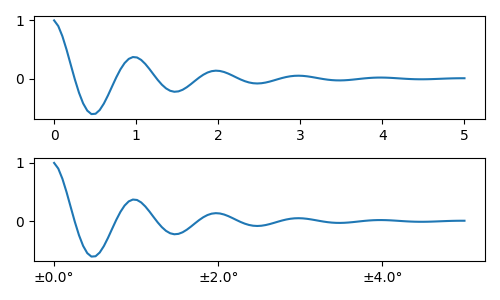
默认格式化器是 matplotlib.ticker.MaxNLocator ,调用为 ticker.MaxNLocator(self, nbins='auto', steps=[1, 2, 2.5, 5, 10]) . steps 参数包含一个可用于刻度值的倍数列表. 在这种情况下,2,4,6 将是可以接受的刻度,20,40,60 或 0.2,0.4,0.6 也是如此. 但是,3,6,9 是不可接受的,因为 3 不在步骤列表中.
设置 nbins=auto 使用一种算法来确定基于轴长度可以接受多少个刻度. 会考虑刻度标签的字体大小,但不考虑刻度字符串的长度(因为它还未知.)在底行中,刻度标签非常大,因此我们设置 nbins=4 以使标签适合右手边的绘图.
fig, axs = plt.subplots(2, 2, figsize=(8, 5), tight_layout=True)
for n, ax in enumerate(axs.flat):
    ax.plot(x1*10., y1)

formatter = matplotlib.ticker.FormatStrFormatter('%1.1f')
locator = matplotlib.ticker.MaxNLocator(nbins='auto', steps=[1, 4, 10])
axs[0, 1].xaxis.set_major_locator(locator)
axs[0, 1].xaxis.set_major_formatter(formatter)

formatter = matplotlib.ticker.FormatStrFormatter('%1.5f')
locator = matplotlib.ticker.AutoLocator()
axs[1, 0].xaxis.set_major_formatter(formatter)
axs[1, 0].xaxis.set_major_locator(locator)

formatter = matplotlib.ticker.FormatStrFormatter('%1.5f')
locator = matplotlib.ticker.MaxNLocator(nbins=4)
axs[1, 1].xaxis.set_major_formatter(formatter)
axs[1, 1].xaxis.set_major_locator(locator)

plt.show()
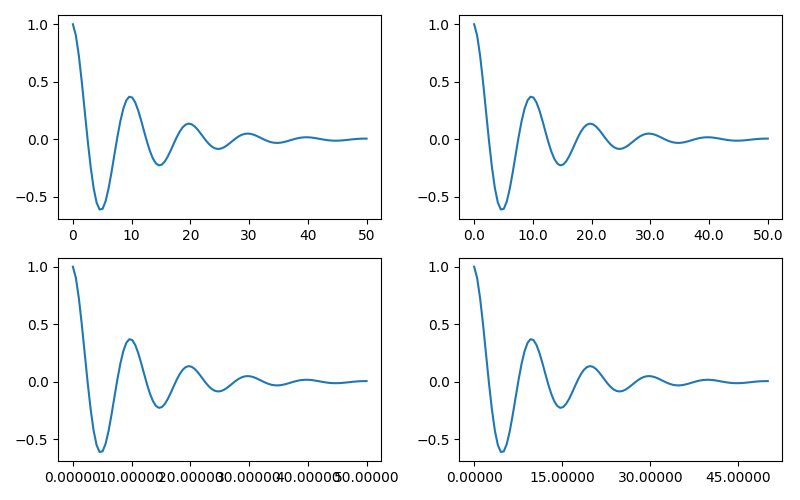
最后,我们可以使用 matplotlib.ticker.FuncFormatter 为格式化器指定函数. 此外,与 matplotlib.ticker.StrMethodFormatter 一样,传递一个函数将自动创建一个 matplotlib.ticker.FuncFormatter .
def formatoddticks(x, pos):
    """Format odd tick positions."""
    if x % 2:
        return f'{x:1.2f}'
    else:
        return ''


fig, ax = plt.subplots(figsize=(5, 3), tight_layout=True)
ax.plot(x1, y1)
locator = matplotlib.ticker.MaxNLocator(nbins=6)
ax.xaxis.set_major_formatter(formatoddticks)
ax.xaxis.set_major_locator(locator)

plt.show()
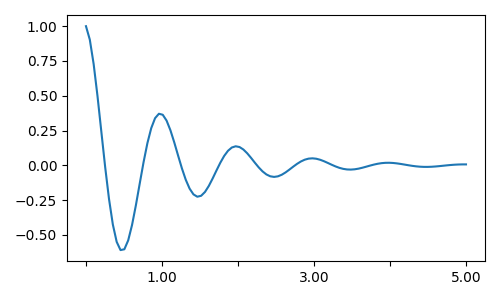
日期刻度#
Matplotlib 可以接受 datetime.datetime 和 numpy.datetime64 对象作为绘图参数. 日期和时间需要特殊的格式设置,这通常可以从手动干预中受益. 为了提供帮助,日期具有特殊的定位器和格式化器,这些定位器和格式化器在 matplotlib.dates 模块中定义.
以下简单示例说明了这一概念. 请注意我们如何旋转刻度标签,以便它们不会重叠.
import datetime

fig, ax = plt.subplots(figsize=(5, 3), tight_layout=True)
base = datetime.datetime(2017, 1, 1, 0, 0, 1)
time = [base + datetime.timedelta(days=x) for x in range(len(x1))]

ax.plot(time, y1)
ax.tick_params(axis='x', rotation=70)
plt.show()
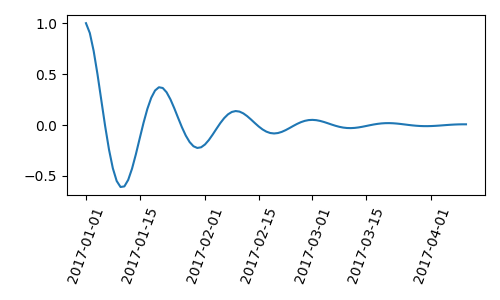
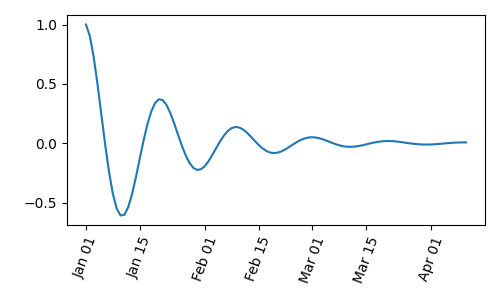
我们可以将格式传递给 matplotlib.dates.DateFormatter . 如果两个刻度标签非常接近,我们可以使用 dates.DayLocator 类,该类允许我们指定要使用的月份天数列表. matplotlib.dates 模块中列出了类似的格式化程序.
import matplotlib.dates as mdates

locator = mdates.DayLocator(bymonthday=[1, 15])
formatter = mdates.DateFormatter('%b %d')

fig, ax = plt.subplots(figsize=(5, 3), tight_layout=True)
ax.xaxis.set_major_locator(locator)
ax.xaxis.set_major_formatter(formatter)
ax.plot(time, y1)
ax.tick_params(axis='x', rotation=70)
plt.show()
Legends and annotations#
脚本的总运行时间:(0 分 4.858 秒)