
备注
Go to the end 下载完整的示例代码.
自动缩放轴#
轴的限制可以手动设置(例如 ax.set_xlim(xmin, xmax) ),或者 Matplotlib 可以根据 Axes 上已有的数据自动设置它们.这种自动缩放行为有许多选项,下面将讨论.
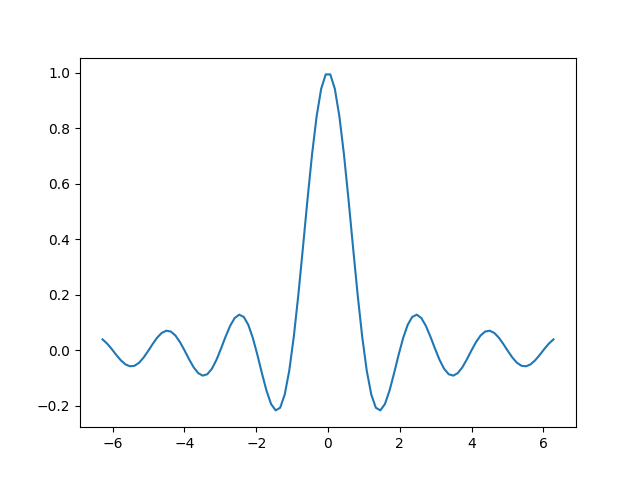
我们将从一个简单的折线图开始,该图显示自动缩放将轴限制扩展到数据限制(-2π, 2π)之外的 5%.
import matplotlib.pyplot as plt
import numpy as np

import matplotlib as mpl

x = np.linspace(-2 * np.pi, 2 * np.pi, 100)
y = np.sinc(x)

fig, ax = plt.subplots()
ax.plot(x, y)
边距#
数据限制周围的默认边距为 5%,这是基于 rcParams["axes.xmargin"] (default: 0.05) , rcParams["axes.ymargin"] (default: 0.05) 和 rcParams["axes.zmargin"] (default: 0.05) 的默认配置设置:
print(ax.margins())
(0.05, 0.05)
可以使用 margins 覆盖边距大小,使其更小或更大:
fig, ax = plt.subplots()
ax.plot(x, y)
ax.margins(0.2, 0.2)
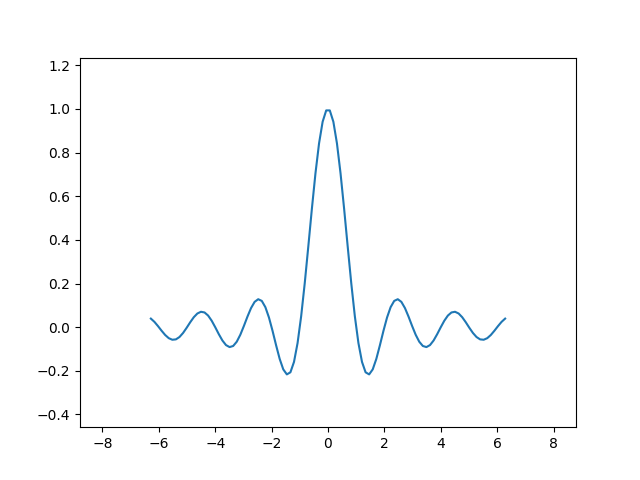
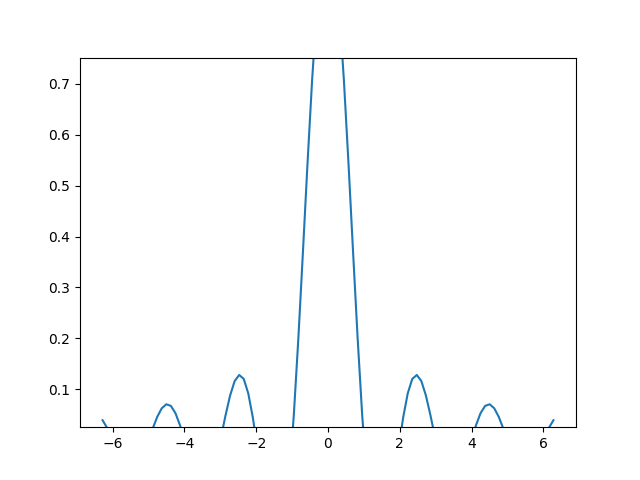
通常,边距可以在 (-0.5, ∞) 范围内,其中负边距将轴限制设置为数据范围的子范围,即它们会裁剪数据.使用单个数字作为边距会影响两个轴,可以使用关键字参数 x 或 y 自定义单个边距,但不能组合位置和关键字接口.
fig, ax = plt.subplots()
ax.plot(x, y)
ax.margins(y=-0.2)
粘性边缘#
有一些绘图元素( Artist )通常在没有边距的情况下使用.例如,伪彩色图像(例如,使用 Axes.imshow 创建)不被认为包含在边距计算中.
xx, yy = np.meshgrid(x, x)
zz = np.sinc(np.sqrt((xx - 1)**2 + (yy - 1)**2))

fig, ax = plt.subplots(ncols=2, figsize=(12, 8))
ax[0].imshow(zz)
ax[0].set_title("default margins")
ax[1].imshow(zz)
ax[1].margins(0.2)
ax[1].set_title("margins(0.2)")
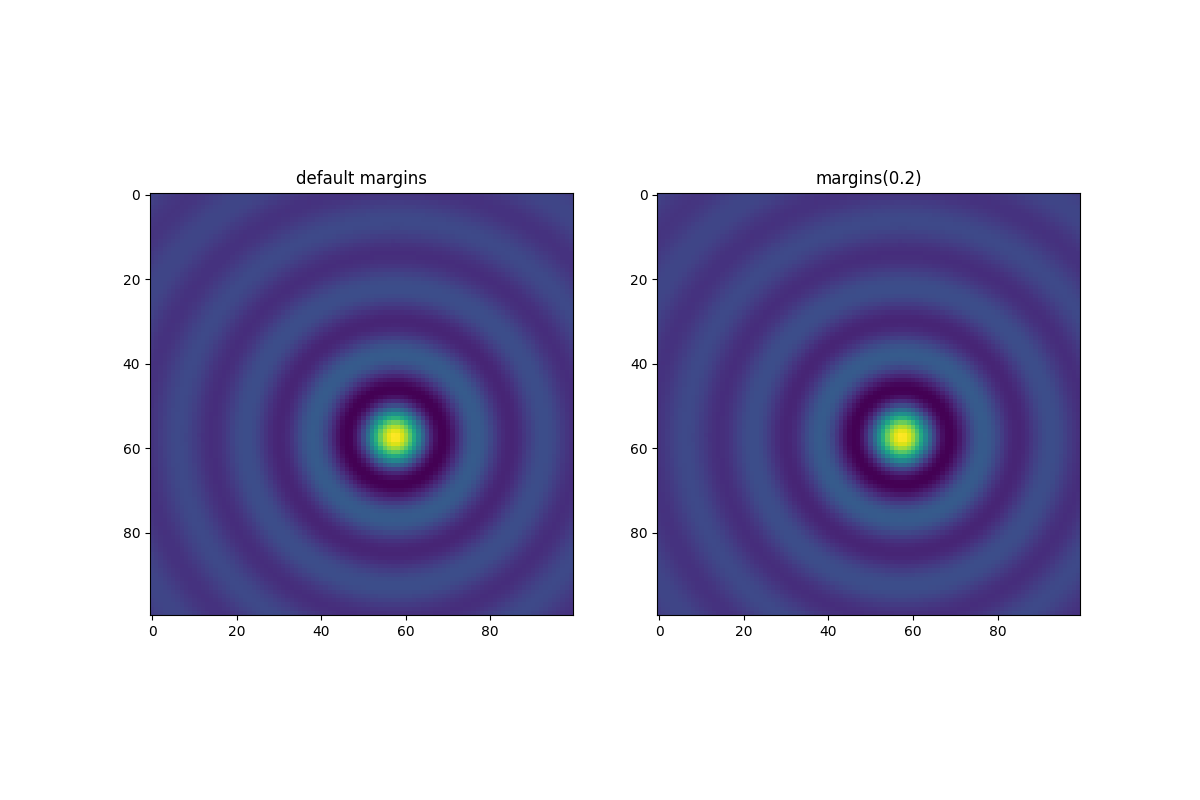
这种对边距的覆盖由"粘性边缘"决定,它是 Artist 类的一个属性,可以抑制向轴限制添加边距.可以通过更改 use_sticky_edges 在 Axes 上禁用粘性边缘的效果.艺术家具有 Artist.sticky_edges 属性,可以通过写入 Artist.sticky_edges.x 或 Artist.sticky_edges.y 来更改粘性边缘的值.
以下示例展示了重写的工作方式以及何时需要重写.
fig, ax = plt.subplots(ncols=3, figsize=(16, 10))
ax[0].imshow(zz)
ax[0].margins(0.2)
ax[0].set_title("default use_sticky_edges\nmargins(0.2)")
ax[1].imshow(zz)
ax[1].margins(0.2)
ax[1].use_sticky_edges = False
ax[1].set_title("use_sticky_edges=False\nmargins(0.2)")
ax[2].imshow(zz)
ax[2].margins(-0.2)
ax[2].set_title("default use_sticky_edges\nmargins(-0.2)")
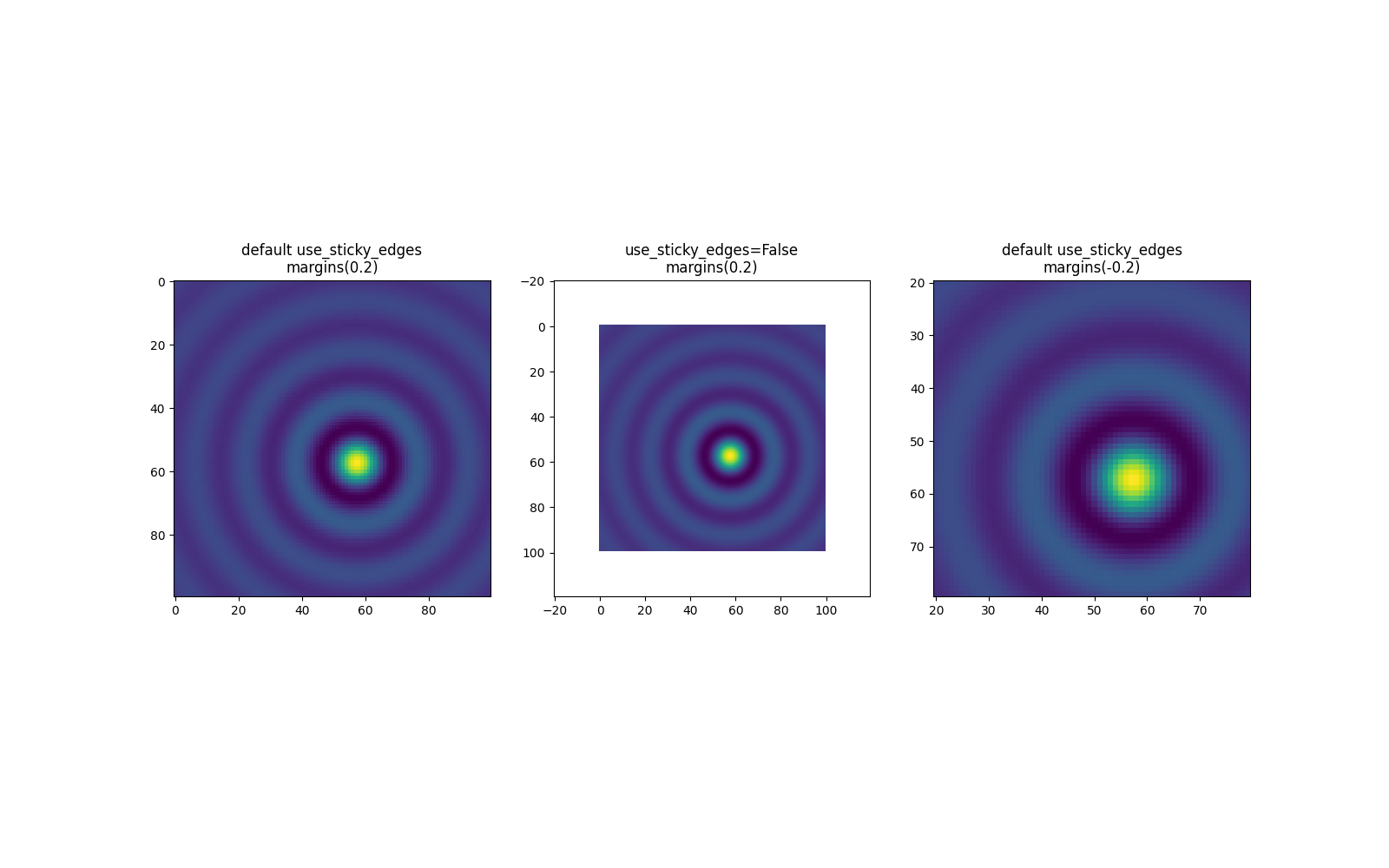
我们可以看到将 use_sticky_edges 设置为 False 会以请求的边距渲染图像.
虽然粘性边缘不会通过额外的边距来增加坐标轴的范围,但仍然会考虑负边距.这可以在第三张图像的缩小后的范围中看到.
控制自动缩放#
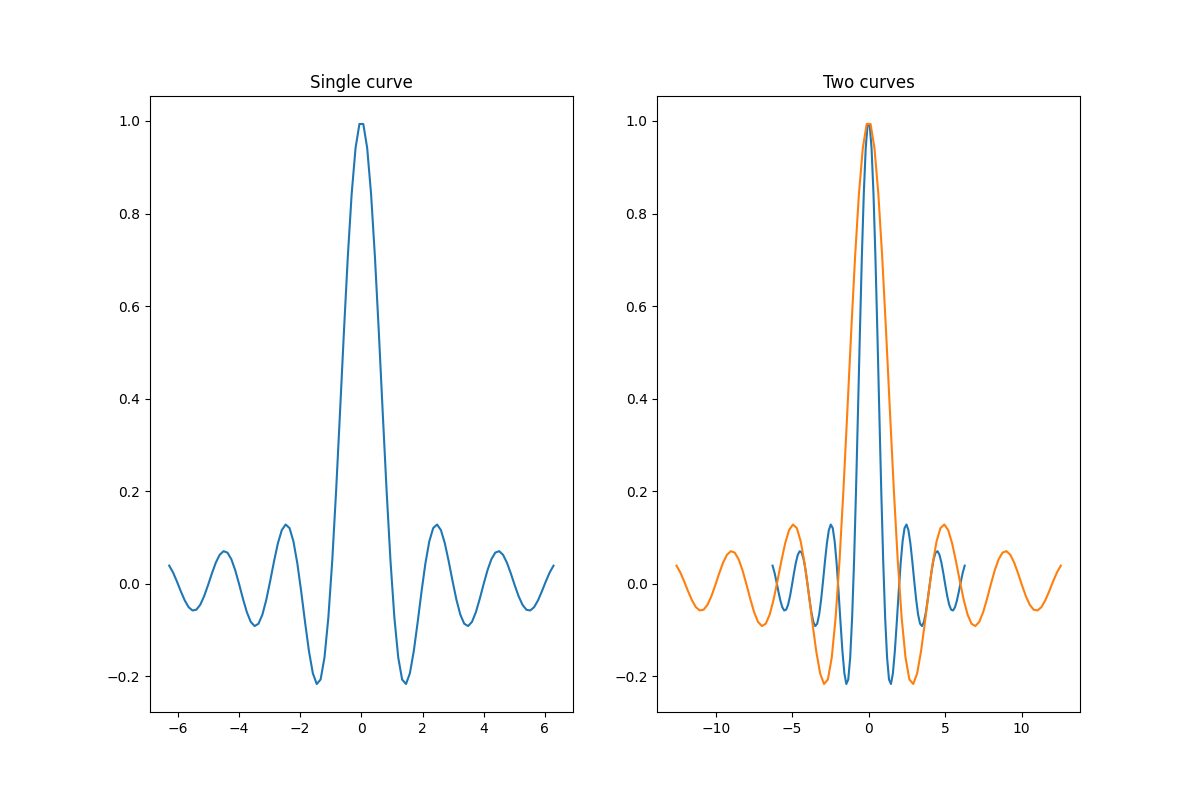
默认情况下,每次向绘图中添加新曲线时,都会重新计算范围:
fig, ax = plt.subplots(ncols=2, figsize=(12, 8))
ax[0].plot(x, y)
ax[0].set_title("Single curve")
ax[1].plot(x, y)
ax[1].plot(x * 2.0, y)
ax[1].set_title("Two curves")
但是,在某些情况下,您不希望自动将视口调整为新数据.
禁用自动缩放的一种方法是手动设置坐标轴范围.假设我们只想更详细地查看部分数据.即使我们向数据添加更多曲线,设置 xlim 也会保持不变.要重新计算新范围,调用 Axes.autoscale 将手动切换此功能.
fig, ax = plt.subplots(ncols=2, figsize=(12, 8))
ax[0].plot(x, y)
ax[0].set_xlim(left=-1, right=1)
ax[0].plot(x + np.pi * 0.5, y)
ax[0].set_title("set_xlim(left=-1, right=1)\n")
ax[1].plot(x, y)
ax[1].set_xlim(left=-1, right=1)
ax[1].plot(x + np.pi * 0.5, y)
ax[1].autoscale()
ax[1].set_title("set_xlim(left=-1, right=1)\nautoscale()")
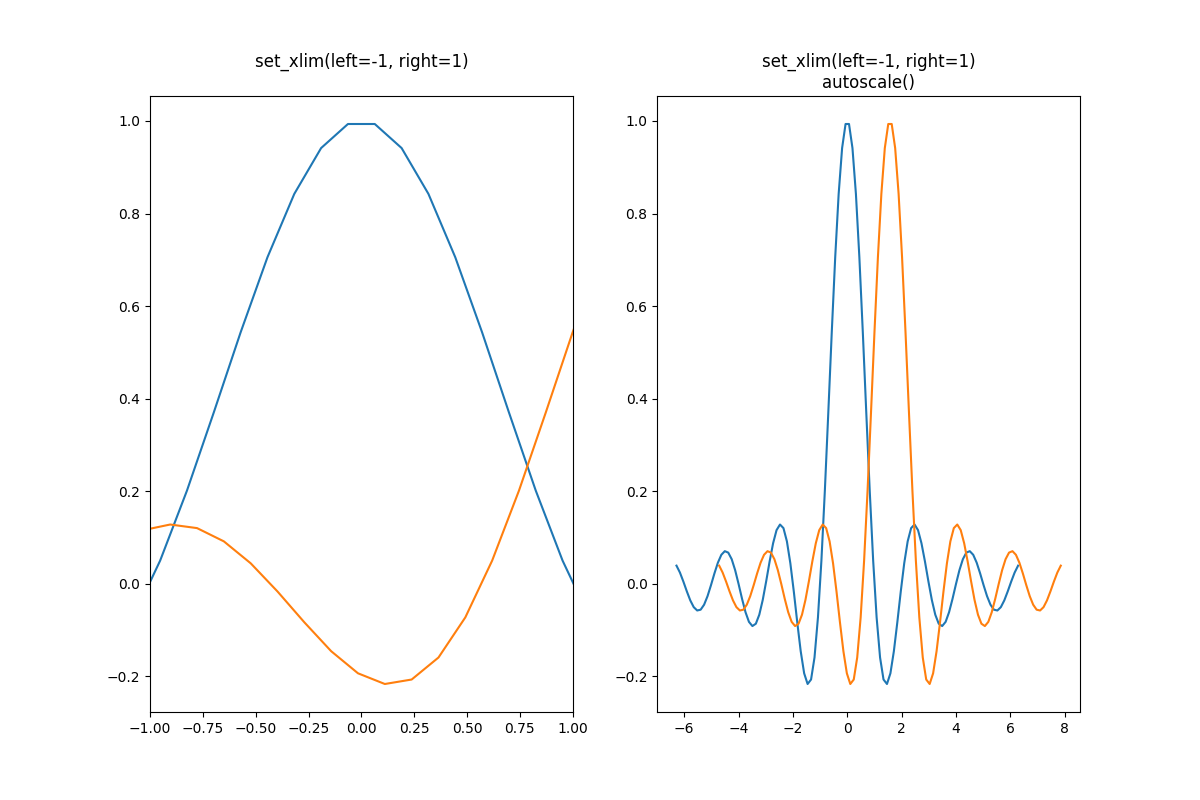
我们可以使用 Axes.get_autoscale_on() 检查第一个绘图是否禁用了自动缩放,以及第二个绘图是否再次启用了自动缩放:
print(ax[0].get_autoscale_on())  # False means disabled
print(ax[1].get_autoscale_on())  # True means enabled -> recalculated
False
True
autoscale 函数的参数使我们能够精确控制自动缩放的过程.参数 enable 和 axis 的组合为选定的轴(或两者)设置自动缩放功能.参数 tight 将所选轴的边距设置为零.要保留 enable 或 tight 的设置,您可以将另一个设置为 None,这样它就不会被修改.但是,将 enable 设置为 None 并将 tight 设置为 True 会影响两个轴,而不管 axis 参数如何.
fig, ax = plt.subplots()
ax.plot(x, y)
ax.margins(0.2, 0.2)
ax.autoscale(enable=None, axis="x", tight=True)

print(ax.margins())
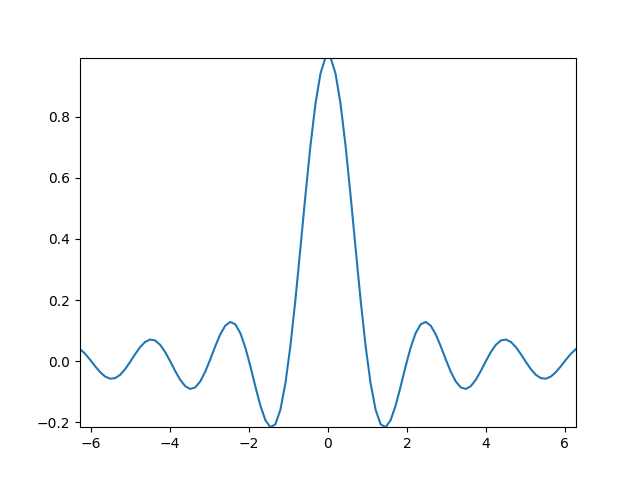
(0, 0)
使用集合#
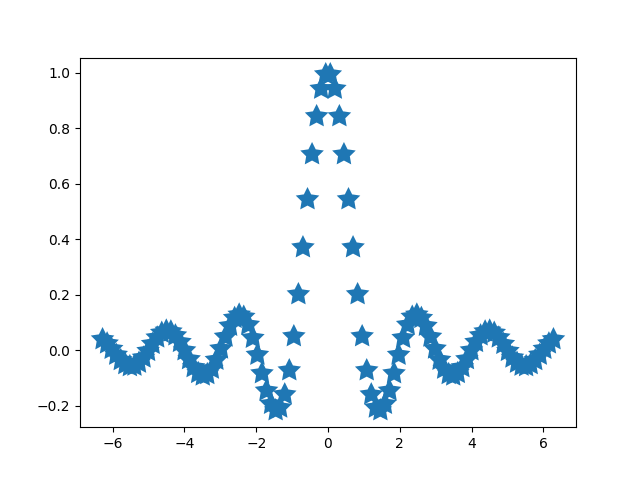
自动缩放适用于添加到 Axes 的所有线条,补丁和图像.它不适用的 artist 之一是 Collection .将集合添加到 Axes 后,必须手动触发 autoscale_view() 以重新计算坐标轴范围.
fig, ax = plt.subplots()
collection = mpl.collections.StarPolygonCollection(
    5, rotation=0, sizes=(250,),  # five point star, zero angle, size 250px
    offsets=np.column_stack([x, y]),  # Set the positions
    offset_transform=ax.transData,  # Propagate transformations of the Axes
)
ax.add_collection(collection)
ax.autoscale_view()
脚本的总运行时间:(0 分 3.535 秒)