
备注
Go to the end 下载完整的示例代码.
Pyplot 教程#
pyplot 接口的介绍.另请参阅 快速入门指南 以了解 Matplotlib 的工作原理,并参阅 Matplotlib 应用程序接口 (APIs) 以了解支持的用户 API 之间的权衡.
pyplot 简介#
matplotlib.pyplot 是使 matplotlib 像 MATLAB 一样工作的一组函数.每个 pyplot 函数都会对图形进行一些更改:例如,创建一个图形,在图形中创建一个绘图区域,在绘图区域中绘制一些线条,用标签装饰绘图等.
在 matplotlib.pyplot 中,各种状态会在函数调用之间被保留,以便它可以跟踪诸如当前图形和绘图区域之类的信息,并且绘图函数会被定向到当前的 Axes(请注意,我们使用大写的 Axes 来指代 Axes 概念,这是一个 part of a figure ,而不仅仅是轴的复数形式).
备注
隐式的 pyplot API 通常不太冗长,但也不如显式的 API 灵活.您在这里看到的大多数函数调用也可以作为 Axes 对象的方法来调用.我们建议您浏览教程和示例,了解它是如何工作的.请参阅 Matplotlib 应用程序接口 (APIs) ,了解所支持的用户 API 的权衡.
使用 pyplot 生成可视化效果非常快:
import matplotlib.pyplot as plt

plt.plot([1, 2, 3, 4])
plt.ylabel('some numbers')
plt.show()
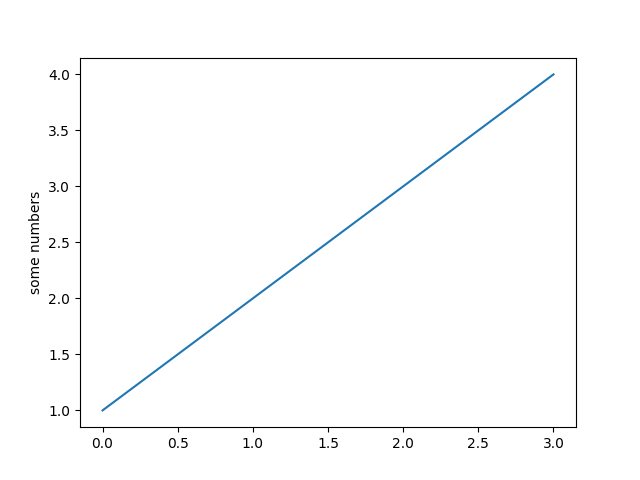
您可能想知道为什么 x 轴的范围是 0-3,y 轴是 1-4.如果您向 plot 提供一个列表或数组,matplotlib 会假定它是一个 y 值序列,并自动为您生成 x 值.由于 python 范围从 0 开始,因此默认的 x 向量与 y 的长度相同,但从 0 开始;因此,x 数据是 [0, 1, 2, 3] .
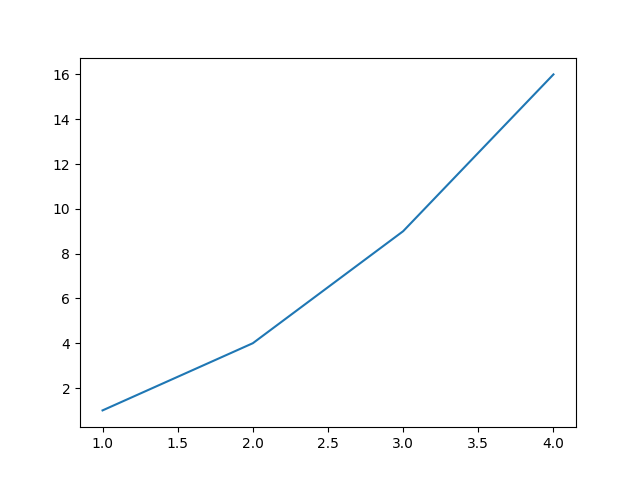
plot 是一个多功能的函数,可以接受任意数量的参数.例如,要绘制 x 与 y 的关系,您可以编写:
plt.plot([1, 2, 3, 4], [1, 4, 9, 16])
格式化绘图的样式#
对于每对 x,y 参数,都有一个可选的第三个参数,即格式字符串,用于指示绘图的颜色和线条类型.格式字符串的字母和符号来自 MATLAB,您将颜色字符串与线条样式字符串连接起来.默认的格式字符串是 'b-',即一条实线蓝色线条.例如,要用红色圆圈绘制上面的图形,您可以发出
plt.plot([1, 2, 3, 4], [1, 4, 9, 16], 'ro')
plt.axis((0, 6, 0, 20))
plt.show()
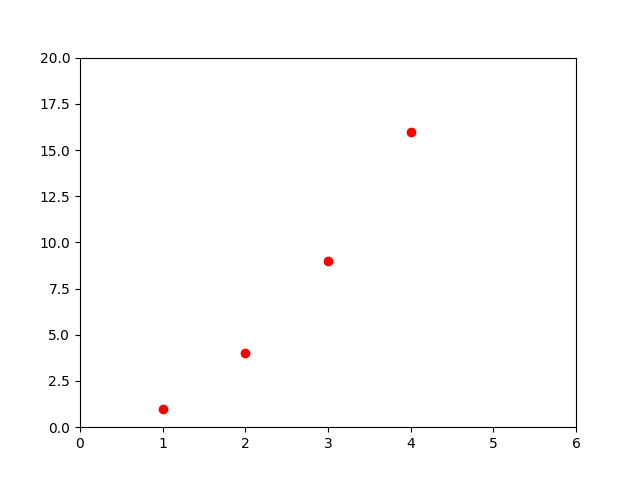
有关线条样式和格式字符串的完整列表,请参阅 plot 文档.上面示例中的 axis 函数接受一个 [xmin, xmax, ymin, ymax] 列表,并指定 Axes 的视口.
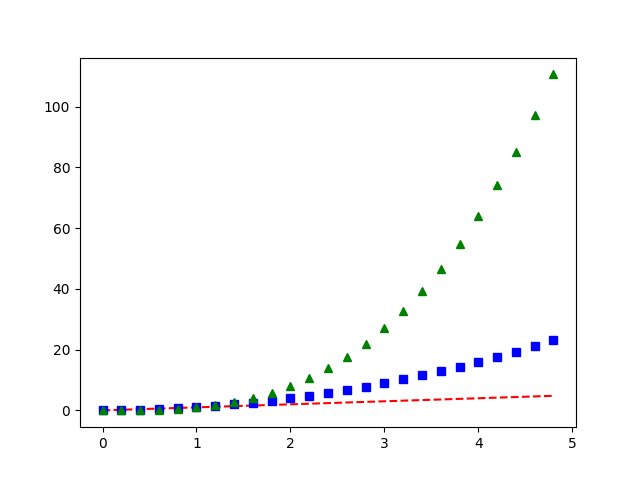
如果 matplotlib 仅限于使用列表,那么它对于数值处理来说将毫无用处.通常,您将使用 numpy 数组.事实上,所有序列都会在内部转换为 numpy 数组.下面的示例演示了在一个函数调用中使用数组绘制具有不同格式样式的多条线.
import numpy as np

# evenly sampled time at 200ms intervals
t = np.arange(0., 5., 0.2)

# red dashes, blue squares and green triangles
plt.plot(t, t, 'r--', t, t**2, 'bs', t, t**3, 'g^')
plt.show()
使用关键字字符串绘图#
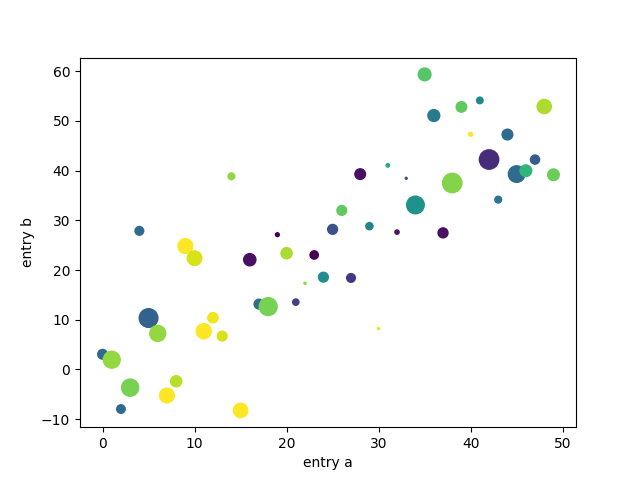
在某些情况下,您的数据格式允许您使用字符串访问特定变量. 例如,使用 structured arrays 或 pandas.DataFrame .
Matplotlib 允许您使用 data 关键字参数提供这样的对象. 如果提供了,那么您可以生成与这些变量对应的字符串的绘图.
data = {'a': np.arange(50),
        'c': np.random.randint(0, 50, 50),
        'd': np.random.randn(50)}
data['b'] = data['a'] + 10 * np.random.randn(50)
data['d'] = np.abs(data['d']) * 100

plt.scatter('a', 'b', c='c', s='d', data=data)
plt.xlabel('entry a')
plt.ylabel('entry b')
plt.show()
使用分类变量绘图#
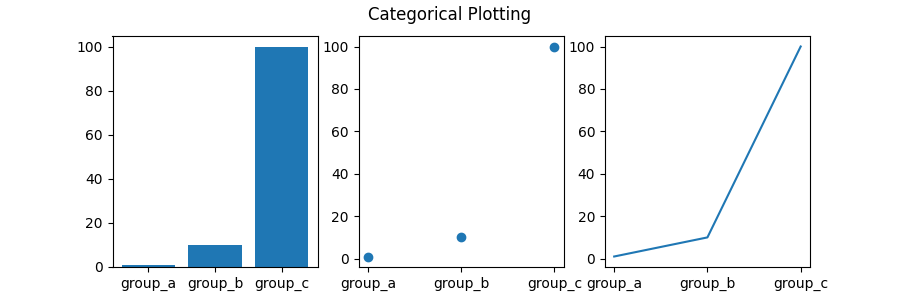
也可以使用分类变量创建绘图. Matplotlib 允许您将分类变量直接传递给许多绘图函数. 例如:
names = ['group_a', 'group_b', 'group_c']
values = [1, 10, 100]

plt.figure(figsize=(9, 3))

plt.subplot(131)
plt.bar(names, values)
plt.subplot(132)
plt.scatter(names, values)
plt.subplot(133)
plt.plot(names, values)
plt.suptitle('Categorical Plotting')
plt.show()
控制线条属性#
线条有许多您可以设置的属性:线宽,虚线样式,抗锯齿等;请参阅 matplotlib.lines.Line2D . 有几种设置线条属性的方法
使用关键字参数:
plt.plot(x, y, linewidth=2.0)
使用
Line2D实例的 setter 方法.plot返回Line2D对象的列表;例如,line1, line2 = plot(x1, y1, x2, y2). 在下面的代码中,我们将假设我们只有一条线,因此返回的列表的长度为 1. 我们使用带有line,的元组解包来获取该列表的第一个元素:line, = plt.plot(x, y, '-') line.set_antialiased(False) # turn off antialiasing
使用
setp. 下面的示例使用 MATLAB 样式的函数来设置线条列表上的多个属性.setp可以透明地处理对象列表或单个对象. 您可以使用 python 关键字参数或 MATLAB 样式的字符串/值对:lines = plt.plot(x1, y1, x2, y2) # use keyword arguments plt.setp(lines, color='r', linewidth=2.0) # or MATLAB style string value pairs plt.setp(lines, 'color', 'r', 'linewidth', 2.0)
以下是可用的 Line2D 属性.
属性 |
值类型 |
|---|---|
alpha |
float |
animated |
[True | False] |
antialiased 或 aa |
[True | False] |
clip_box |
一个 matplotlib.transform.Bbox 实例 |
clip_on |
[True | False] |
clip_path |
一个 Path 实例和一个 Transform 实例,一个 Patch |
color 或 c |
任何 matplotlib 颜色 |
contains |
命中测试函数 |
dash_capstyle |
[ |
dash_joinstyle |
[ |
dashes |
以点为单位的on/off墨水序列 |
数据 |
(np.array xdata, np.array ydata) |
figure |
一个 matplotlib.figure.Figure 实例 |
label |
任何字符串 |
linestyle 或 ls |
[ |
linewidth 或 lw |
点数单位的浮点数值 |
marker |
[ |
markeredgecolor 或 mec |
任何 matplotlib 颜色 |
markeredgewidth 或 mew |
点数单位的浮点数值 |
markerfacecolor 或 mfc |
任何 matplotlib 颜色 |
markersize 或 ms |
float |
markevery |
[ None | 整数 | (startind, stride) ] |
picker |
用于交互式线条选择 |
pickradius |
线条拾取选择半径 |
solid_capstyle |
[ |
solid_joinstyle |
[ |
transform |
一个 matplotlib.transforms.Transform 实例 |
visible |
[True | False] |
xdata |
np.array |
ydata |
np.array |
zorder |
任意数字 |
要获取可设置线条属性的列表,请使用线条作为参数调用 setp 函数
In [69]: lines = plt.plot([1, 2, 3])

In [70]: plt.setp(lines)
  alpha: float
  animated: [True | False]
  antialiased or aa: [True | False]
  ...snip
使用多个 figures 和 Axes#
MATLAB 和 pyplot 具有当前 figure 和当前 Axes 的概念.所有绘图函数都应用于当前 Axes.函数 gca 返回当前的 Axes (一个 matplotlib.axes.Axes 实例), gcf 返回当前的 figure (一个 matplotlib.figure.Figure 实例).通常,您不必担心这一点,因为所有这些都在幕后处理.以下是创建两个子图的脚本.
def f(t):
    return np.exp(-t) * np.cos(2*np.pi*t)

t1 = np.arange(0.0, 5.0, 0.1)
t2 = np.arange(0.0, 5.0, 0.02)

plt.figure()
plt.subplot(211)
plt.plot(t1, f(t1), 'bo', t2, f(t2), 'k')

plt.subplot(212)
plt.plot(t2, np.cos(2*np.pi*t2), 'r--')
plt.show()
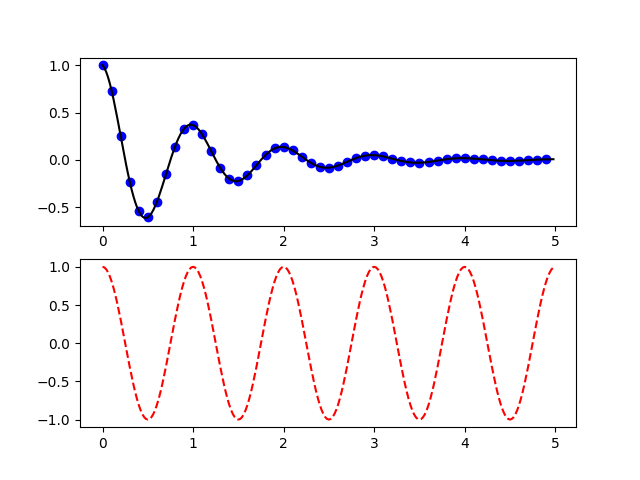
这里的 figure 调用是可选的,因为如果不存在 figure,则将创建一个 figure,就像如果不存在 Axes,则将创建一个 Axes(等效于显式的 subplot() 调用). subplot 调用指定 numrows, numcols, plot_number ,其中 plot_number 的范围从 1 到 numrowsnumcols .如果 numrowsnumcols<10 ,则 subplot 调用中的逗号是可选的.因此, subplot(211) 与 subplot(2, 1, 1) 相同.
您可以创建任意数量的子图和 Axes.如果您想手动放置一个 Axes,即不在矩形网格上,请使用 axes ,它允许您将位置指定为 axes([left, bottom, width, height]) ,其中所有值都是分数坐标(0 到 1).有关手动放置 Axes 的示例,请参见 Axes 演示 ,以及有关具有大量子图的示例,请参见 多个子图 .
您可以通过使用多个具有递增图号的 figure 调用来创建多个 figure.当然,每个 figure 可以包含任意数量的 Axes 和子图:
import matplotlib.pyplot as plt
plt.figure(1)                # the first figure
plt.subplot(211)             # the first subplot in the first figure
plt.plot([1, 2, 3])
plt.subplot(212)             # the second subplot in the first figure
plt.plot([4, 5, 6])


plt.figure(2)                # a second figure
plt.plot([4, 5, 6])          # creates a subplot() by default

plt.figure(1)                # first figure current;
                             # subplot(212) still current
plt.subplot(211)             # make subplot(211) in the first figure
                             # current
plt.title('Easy as 1, 2, 3') # subplot 211 title
您可以使用 clf 清除当前 figure,使用 cla 清除当前 Axes.如果您觉得状态(特别是当前的图像,figure 和 Axes)在幕后为您维护很烦人,请不要绝望:这只是一个面向对象 API 的薄状态包装器,您可以改为使用它(请参阅 艺术家教程 )
如果您要制作很多 figure,则需要注意另一件事:在用 close 显式关闭 figure 之前,不会完全释放 figure 所需的内存.删除对 figure 的所有引用,和/或使用窗口管理器杀死屏幕上显示 figure 的窗口是不够的,因为 pyplot 会维护内部引用,直到调用 close .
处理文本#
text 可用于在任意位置添加文本, xlabel , ylabel 和 title 用于在指定位置添加文本(有关更详细的示例,请参阅 Matplotlib 中的文本 )
mu, sigma = 100, 15
x = mu + sigma * np.random.randn(10000)

# the histogram of the data
n, bins, patches = plt.hist(x, 50, density=True, facecolor='g', alpha=0.75)


plt.xlabel('Smarts')
plt.ylabel('Probability')
plt.title('Histogram of IQ')
plt.text(60, .025, r'$\mu=100,\ \sigma=15$')
plt.axis([40, 160, 0, 0.03])
plt.grid(True)
plt.show()
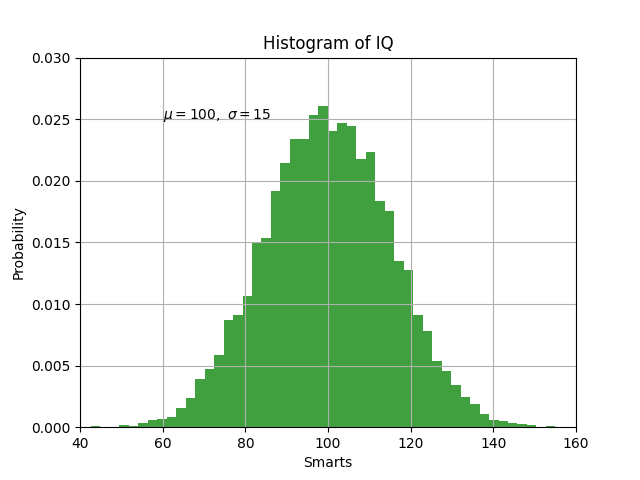
所有 text 函数都返回一个 matplotlib.text.Text 实例.就像上面的线条一样,您可以通过将关键字参数传递到文本函数中或使用 setp 来自定义属性:
t = plt.xlabel('my data', fontsize=14, color='red')
这些属性在 文本属性和布局 中有更详细的介绍.
在文本中使用数学表达式#
Matplotlib 接受任何文本表达式中的 TeX 方程表达式.例如,要在标题中写入表达式 \(\sigma_i=15\) ,您可以编写一个用美元符号包围的 TeX 表达式:
plt.title(r'$\sigma_i=15$')
标题字符串前面的 r 很重要 -- 它表示该字符串是原始字符串,不应将反斜杠视为 python 转义符.matplotlib 具有内置的 TeX 表达式分析器和布局引擎,并提供自己的数学字体 -- 有关详细信息,请参阅 书写数学表达式 .因此,您可以在无需 TeX 安装的情况下跨平台使用数学文本.对于那些安装了 LaTeX 和 dvipng 的人,您也可以使用 LaTeX 来格式化文本,并将输出直接合并到您的显示 figure 或保存的 postscript 中 -- 请参阅 使用 LaTeX 渲染文本 .
文本标注#
上面基本 text 函数的用法是在坐标轴上的任意位置放置文本.文本的一个常见用途是注释绘图的某些特征, annotate 方法提供了辅助功能,使注释变得容易.在注释中,需要考虑两点:被注释的位置,由参数 xy 表示,以及文本的位置 xytext .这两个参数都是 (x, y) 元组.
ax = plt.subplot()

t = np.arange(0.0, 5.0, 0.01)
s = np.cos(2*np.pi*t)
line, = plt.plot(t, s, lw=2)

plt.annotate('local max', xy=(2, 1), xytext=(3, 1.5),
             arrowprops=dict(facecolor='black', shrink=0.05),
             )

plt.ylim(-2, 2)
plt.show()
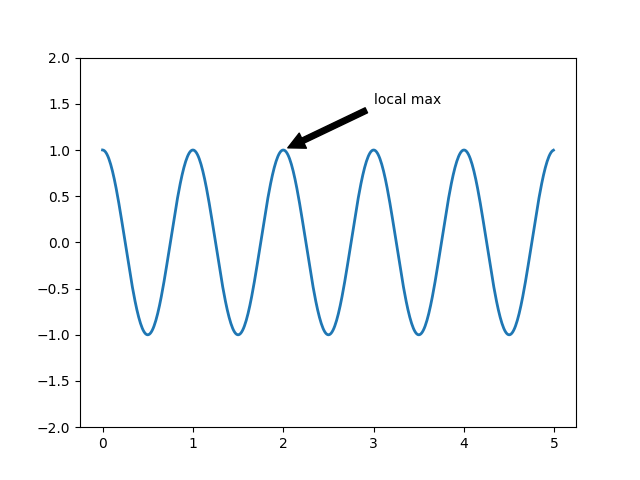
在这个基本示例中, xy (箭头尖端)和 xytext 位置(文本位置)都在数据坐标中.可以选择多种其他坐标系--有关详细信息,请参见 Basic annotation 和 高级注释 .更多示例可以在 注释绘图 中找到.
对数和其他非线性轴#
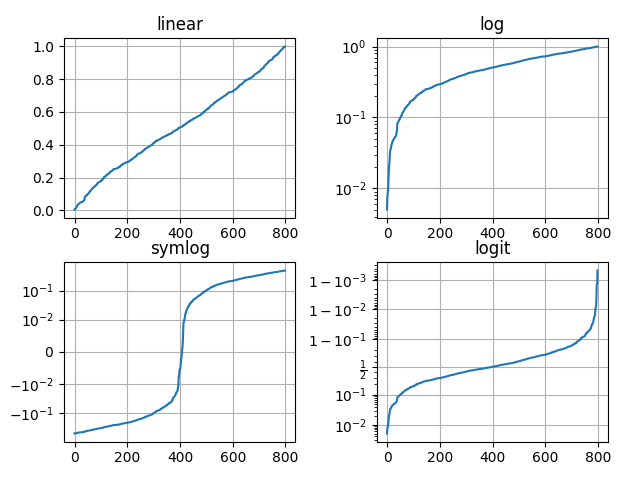
matplotlib.pyplot 不仅支持线性轴刻度,还支持对数和logit刻度.如果数据跨越多个数量级,这通常使用.更改轴的刻度很容易:
plt.xscale('log')
下面显示了一个包含相同数据和y轴不同刻度的四个图的示例.
# Fixing random state for reproducibility
np.random.seed(19680801)

# make up some data in the open interval (0, 1)
y = np.random.normal(loc=0.5, scale=0.4, size=1000)
y = y[(y > 0) & (y < 1)]
y.sort()
x = np.arange(len(y))

# plot with various axes scales
plt.figure()

# linear
plt.subplot(221)
plt.plot(x, y)
plt.yscale('linear')
plt.title('linear')
plt.grid(True)

# log
plt.subplot(222)
plt.plot(x, y)
plt.yscale('log')
plt.title('log')
plt.grid(True)

# symmetric log
plt.subplot(223)
plt.plot(x, y - y.mean())
plt.yscale('symlog', linthresh=0.01)
plt.title('symlog')
plt.grid(True)

# logit
plt.subplot(224)
plt.plot(x, y)
plt.yscale('logit')
plt.title('logit')
plt.grid(True)
# Adjust the subplot layout, because the logit one may take more space
# than usual, due to y-tick labels like "1 - 10^{-3}"
plt.subplots_adjust(top=0.92, bottom=0.08, left=0.10, right=0.95, hspace=0.25,
                    wspace=0.35)

plt.show()
也可以添加自己的刻度,有关详细信息,请参见 matplotlib.scale .
脚本的总运行时间:(0 分钟 2.440 秒)